Kiwi for Gmail
Kiwi for Gmail
Desktop Gmail client for Windows and Mac that transforms Gmail into a standalone app with enhanced productivity features.
Key Features
- Gmail-focused
- Multiple accounts
- G Suite integration
- Offline access
- Email tracking
- Focus mode
- Do not disturb
- Keyboard shortcuts
- Quick access sidebar
- Native notifications
- Touch bar support
- Dark mode
- Privacy mode
- Google Workspace apps
- Desktop integration
What is Kiwi for Gmail?
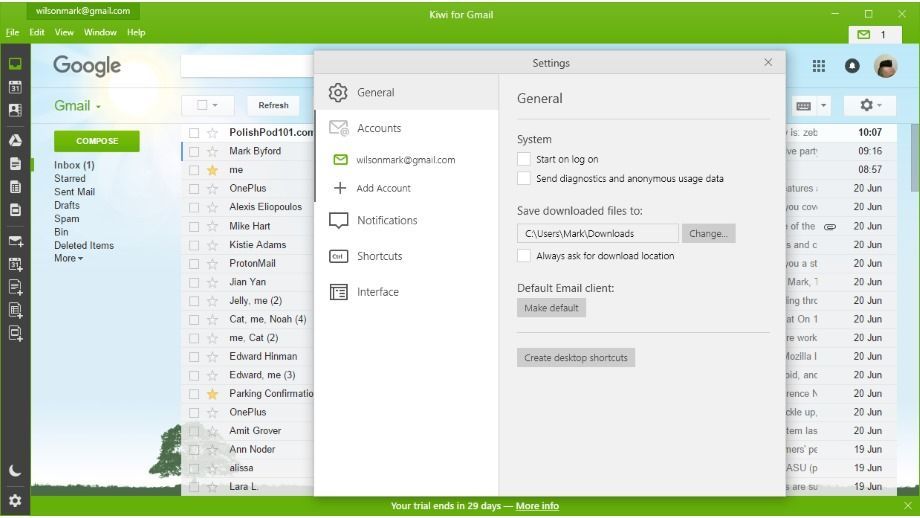
Kiwi for Gmail is a desktop email client that transforms Gmail into a standalone application for Windows and Mac. Rather than building an email client from scratch, Kiwi wraps Gmail's web interface in a native desktop application, providing users with the familiar Gmail experience they know while adding powerful productivity enhancements and desktop integration features.
The application maintains full compatibility with Gmail's features, including labels, filters, keyboard shortcuts, and extensions, while eliminating the distractions of having email open in a browser tab. This approach ensures that users don't need to learn a new interface or sacrifice any Gmail functionality they've come to rely on.
Kiwi extends Gmail's capabilities with features specifically designed for desktop productivity. Users can manage multiple Gmail accounts simultaneously, access their email offline, receive native desktop notifications, and integrate their entire Google Workspace directly into the application. The client also includes focus modes, privacy features, and customization options that aren't available in the standard Gmail web interface.
For professionals and teams heavily invested in the Google ecosystem, Kiwi serves as a central hub for email and productivity. It's particularly valuable for users who want the convenience of a dedicated email application without abandoning Gmail's powerful features or migrating their data to a different platform.
Pros and Cons
Pros:
- Maintains 100% Gmail compatibility including all features, shortcuts, and extensions
- Separates email from browser tabs, reducing distractions and improving focus
- Supports multiple Gmail accounts with easy switching and unified management
- Provides offline access to emails for working without internet connectivity
- Integrates entire Google Workspace (Drive, Calendar, Docs, etc.) in one application
- Native desktop notifications that work even when the app is minimized
- Focus mode and do not disturb features for distraction-free email management
- Quick access sidebar for instant navigation to folders and labels
- Privacy mode to protect sensitive information from shoulder surfing
- Touch Bar support for MacBook Pro users with contextual controls
- Dark mode for comfortable viewing in low-light environments
- Affordable pricing with a free version and reasonably priced Pro tier
Cons:
- Only works with Gmail and G Suite accounts, not compatible with other email providers
- Requires internet connection for most features despite offline mode availability
- Free version limits users to two accounts, requiring Pro for unlimited accounts
- Still essentially a web wrapper, so performance depends on Gmail's web interface
- Some advanced features like email tracking require the Pro subscription
- No Linux support, limiting platform availability to Windows and Mac only
- Dependent on Google's infrastructure and any changes to Gmail's web interface
- May consume more system resources than using Gmail in a browser tab
- Limited customization options compared to traditional email clients like Thunderbird
Who It's For
Kiwi for Gmail is ideal for professionals and businesses who are deeply integrated into the Google ecosystem and want a more focused email experience. If you rely on Gmail for work, manage multiple Google accounts, or use Google Workspace extensively, Kiwi provides a streamlined way to access all these tools without the distraction of browser tabs and bookmarks.
The application is particularly well-suited for remote workers and digital nomads who need reliable offline access to their email. While Gmail's web interface offers limited offline functionality, Kiwi's implementation is more robust, allowing users to read, compose, and organize emails even without an internet connection, with changes syncing automatically when connectivity is restored.
Users who struggle with email overload and distraction will appreciate Kiwi's focus-oriented features. The focus mode, do not disturb settings, and privacy mode help create boundaries around email time, making it easier to maintain productivity without constant interruptions. The dedicated desktop application also helps establish a clearer separation between email and other browser-based activities.
However, Kiwi isn't the right choice for users who need to manage non-Gmail accounts or prefer a traditional email client with extensive customization options. If you use multiple email providers, need advanced email rules and automation beyond what Gmail offers, or want complete control over your email client's appearance and behavior, you'll be better served by a more traditional email application.
Gmail-Focused
Kiwi's Gmail-focused approach is both its greatest strength and its defining limitation. By building exclusively around Gmail's web interface, Kiwi ensures perfect compatibility with every Gmail feature, from smart compose and nudges to confidential mode and scheduled sending. Users don't need to worry about feature parity or learning a new interface—everything works exactly as it does in Gmail.
This specialization means that Gmail power users can leverage all their existing knowledge, keyboard shortcuts, and workflows without adaptation. Custom labels, filters, and search operators function identically, and any Gmail extensions or add-ons installed in your Google account work seamlessly within Kiwi. The application essentially provides a native desktop shell for the Gmail experience you already know.
The Gmail-centric design also means automatic updates and improvements. When Google rolls out new Gmail features or interface enhancements, they appear in Kiwi without requiring an application update. This ensures users always have access to the latest Gmail capabilities while benefiting from Kiwi's desktop-specific enhancements.
However, this focus comes with trade-offs. Users with non-Gmail accounts must look elsewhere, and those seeking features beyond Gmail's capabilities won't find them here. Kiwi enhances the Gmail experience but doesn't fundamentally change it, making it a perfect solution for Gmail enthusiasts but unsuitable for users seeking a more versatile email client.
G Suite Integration
One of Kiwi's most compelling features is its comprehensive Google Workspace (formerly G Suite) integration. Rather than just providing access to Gmail, Kiwi serves as a unified hub for your entire Google productivity suite. The quick access sidebar provides instant navigation to Google Calendar, Drive, Docs, Sheets, Slides, Keep, Tasks, and Contacts—all within the same application window.
This integration eliminates the need to juggle multiple browser tabs or windows when working across Google's ecosystem. You can check your calendar while composing an email, attach files directly from Drive, or reference notes from Keep without leaving the application. For teams and professionals who live in Google Workspace, this consolidation significantly streamlines daily workflows.
The integration extends to notifications and desktop features as well. Calendar reminders, Drive sharing notifications, and document comments all appear as native desktop notifications, ensuring you stay informed about workspace activity even when focused on email. This unified notification system helps prevent important updates from getting lost in browser tabs.
Offline Access
Kiwi's offline access capabilities provide a significant advantage over using Gmail in a standard browser. While Gmail's web interface offers basic offline functionality through a Chrome extension, Kiwi's implementation is more robust and reliable. The application automatically syncs recent emails to your local device, allowing you to read, search, compose, and organize messages without an internet connection.
When working offline, you can compose new emails, reply to existing messages, and apply labels or archive conversations. All these actions are queued locally and automatically sync with Gmail's servers once your internet connection is restored. This seamless synchronization ensures that your work isn't lost and that your email state remains consistent across devices.
The offline mode is particularly valuable for frequent travelers, remote workers in areas with unreliable connectivity, or anyone who wants to maintain productivity during internet outages. You can continue managing your inbox during flights, in coffee shops with spotty Wi-Fi, or anywhere else where connectivity is limited or unavailable.
However, it's important to note that offline access has limitations. Only recently synced emails are available offline, and some Gmail features that require server communication won't function without connectivity. Additionally, attachments may not be available offline unless they were previously opened or explicitly cached.
Focus Mode
Focus Mode is one of Kiwi's standout productivity features, designed to help users maintain concentration and establish healthy email boundaries. When activated, Focus Mode minimizes distractions by hiding notification badges, muting alerts, and creating a cleaner interface that encourages intentional email checking rather than constant monitoring.
The feature works in conjunction with Kiwi's Do Not Disturb mode, which allows users to schedule specific times when email notifications are completely silenced. This is particularly useful for establishing email-free periods during deep work sessions, meetings, or personal time. Users can customize these settings to match their productivity rhythms and work preferences.
Focus Mode also includes a privacy feature that blurs email content when the application isn't in focus, protecting sensitive information from shoulder surfing in public spaces or shared offices. This security-conscious design makes Kiwi suitable for handling confidential business communications in various work environments.
By providing these focus-oriented tools, Kiwi acknowledges the challenges of email overload and constant connectivity. The features encourage users to develop healthier email habits, checking messages at designated times rather than responding to every notification immediately, ultimately supporting better work-life balance and productivity.
Quick Access Sidebar
The Quick Access Sidebar is Kiwi's navigation hub, providing instant access to all your Gmail labels, folders, and Google Workspace applications. Unlike Gmail's web interface where navigation options can feel buried or require multiple clicks, Kiwi's sidebar keeps everything visible and accessible with a single click, significantly speeding up common navigation tasks.
The sidebar is fully customizable, allowing users to pin their most frequently used labels and folders for even faster access. This customization is particularly valuable for users with complex label hierarchies or those who regularly switch between different email contexts throughout the day. The sidebar can be collapsed when not needed, maximizing screen space for email content.
Beyond Gmail navigation, the sidebar integrates access to all Google Workspace applications. Users can quickly jump to Calendar, Drive, Docs, or any other Google service without leaving Kiwi or opening a browser. This integration transforms Kiwi from a simple email client into a comprehensive workspace hub.
For users managing multiple Gmail accounts, the sidebar also provides quick account switching. You can see at a glance which account you're currently viewing and switch between accounts with a single click, making it easy to maintain separation between personal and professional email or manage multiple business accounts.
Google Workspace Apps
Kiwi's integration of Google Workspace applications transforms it from a simple email client into a comprehensive productivity platform. All major Google services, including Calendar, Drive, Docs, Sheets, Slides, Keep, Tasks, and Contacts, are accessible directly within the application, eliminating the need to maintain separate browser tabs or windows for each service.
This unified approach creates a seamless workflow for users who rely heavily on Google's ecosystem. You can reference your calendar while scheduling meetings via email, attach Drive files without opening a browser, or check your task list while processing your inbox. The integration feels natural and intuitive, as all services maintain their familiar Google interfaces within Kiwi's desktop shell.
The workspace integration extends to notifications and updates across all services. Document sharing notifications, calendar reminders, and task deadlines all appear as native desktop notifications, ensuring you stay informed about important updates regardless of which application you're currently using. This unified notification system helps prevent important information from getting lost across multiple browser tabs.
For teams and organizations using Google Workspace for collaboration, Kiwi serves as a central hub that keeps all essential tools within reach. This consolidation can significantly improve productivity by reducing context switching and the cognitive overhead of managing multiple applications and browser windows throughout the workday.
Pricing
Kiwi for Gmail offers a straightforward two-tier pricing structure that makes it accessible to individual users while providing enhanced features for power users and professionals.
The Free version provides access to core functionality, including the desktop application, Gmail integration, offline access, native notifications, and basic Google Workspace integration. However, free users are limited to managing two Gmail accounts, which may be sufficient for users who only need to separate personal and work email.
The Pro version costs $29.99 per year (approximately $2.50 per month) and unlocks unlimited Gmail accounts, email tracking capabilities, priority support, and advanced features like enhanced focus modes and customization options. This pricing is notably affordable compared to many productivity tools and email clients, making it an attractive option for professionals and small businesses.
The annual subscription model keeps costs predictable, and the low price point means that even individual users can justify the Pro upgrade if they need to manage more than two accounts or want access to advanced features. For businesses, the per-user cost is minimal compared to the productivity gains from having a dedicated, feature-rich Gmail client.
Verdict
Kiwi for Gmail excels at what it sets out to do: provide a focused, desktop-native experience for Gmail users who want more than a browser tab but don't want to abandon Gmail's familiar interface and powerful features. By wrapping Gmail in a dedicated application with thoughtful productivity enhancements, Kiwi strikes an excellent balance between familiarity and innovation.
The application's greatest strength is its seamless integration with the Google ecosystem. For users and teams heavily invested in Google Workspace, Kiwi provides a unified hub that consolidates email, calendar, documents, and other services into a single, distraction-free application. The offline access, focus modes, and native desktop features add genuine value beyond what Gmail's web interface offers.
However, Kiwi's Gmail-exclusive focus is also its limitation. Users who need to manage non-Gmail accounts or want extensive customization options will need to look elsewhere. The application is essentially a sophisticated wrapper around Gmail's web interface, which means it inherits both Gmail's strengths and its constraints.
For its target audience, Gmail power users, Google Workspace professionals, and anyone seeking a more focused email experience, Kiwi for Gmail is an excellent choice. The free version provides enough functionality for casual users to evaluate the concept, while the affordable Pro tier offers compelling value for those who need advanced features. If you're committed to Gmail and want to enhance your email productivity without learning a new system, Kiwi deserves serious consideration.
Frequently Asked Questions about Kiwi for Gmail
What is Kiwi for Gmail?
Kiwi for Gmail is a desktop email client that transforms Gmail into a standalone application for Windows and Mac. Rather than building an email client from scratch, Kiwi wraps Gmail's web interface in a native desktop application, providing users with the familiar Gmail experience they know while adding powerful productivity enhancements and desktop integration features.
The application maintains full compatibility with Gmail's features, including labels, filters, keyboard shortcuts, and extensions, while eliminating the distractions of having email open in a browser tab. This approach ensures that users don't need to learn a new interface or sacrifice any Gmail functionality they've come to rely on.
Kiwi extends Gmail's capabilities with features specifically designed for desktop productivity. Users can manage multiple Gmail accounts simultaneously, access their email offline, receive native desktop notifications, and integrate their entire Google Workspace directly into the application. The client also includes focus modes, privacy features, and customization options that aren't available in the standard Gmail web interface.
For professionals and teams heavily invested in the Google ecosystem, Kiwi serves as a central hub for email and productivity. It's particularly valuable for users who want the convenience of a dedicated email application without abandoning Gmail's powerful features or migrating their data to a different platform.
Pros and Cons
Pros:
- Maintains 100% Gmail compatibility including all features, shortcuts, and extensions
- Separates email from browser tabs, reducing distractions and improving focus
- Supports multiple Gmail accounts with easy switching and unified management
- Provides offline access to emails for working without internet connectivity
- Integrates entire Google Workspace (Drive, Calendar, Docs, etc.) in one application
- Native desktop notifications that work even when the app is minimized
- Focus mode and do not disturb features for distraction-free email management
- Quick access sidebar for instant navigation to folders and labels
- Privacy mode to protect sensitive information from shoulder surfing
- Touch Bar support for MacBook Pro users with contextual controls
- Dark mode for comfortable viewing in low-light environments
- Affordable pricing with a free version and reasonably priced Pro tier
Cons:
- Only works with Gmail and G Suite accounts, not compatible with other email providers
- Requires internet connection for most features despite offline mode availability
- Free version limits users to two accounts, requiring Pro for unlimited accounts
- Still essentially a web wrapper, so performance depends on Gmail's web interface
- Some advanced features like email tracking require the Pro subscription
- No Linux support, limiting platform availability to Windows and Mac only
- Dependent on Google's infrastructure and any changes to Gmail's web interface
- May consume more system resources than using Gmail in a browser tab
- Limited customization options compared to traditional email clients like Thunderbird
Who It's For
Kiwi for Gmail is ideal for professionals and businesses who are deeply integrated into the Google ecosystem and want a more focused email experience. If you rely on Gmail for work, manage multiple Google accounts, or use Google Workspace extensively, Kiwi provides a streamlined way to access all these tools without the distraction of browser tabs and bookmarks.
The application is particularly well-suited for remote workers and digital nomads who need reliable offline access to their email. While Gmail's web interface offers limited offline functionality, Kiwi's implementation is more robust, allowing users to read, compose, and organize emails even without an internet connection, with changes syncing automatically when connectivity is restored.
Users who struggle with email overload and distraction will appreciate Kiwi's focus-oriented features. The focus mode, do not disturb settings, and privacy mode help create boundaries around email time, making it easier to maintain productivity without constant interruptions. The dedicated desktop application also helps establish a clearer separation between email and other browser-based activities.
However, Kiwi isn't the right choice for users who need to manage non-Gmail accounts or prefer a traditional email client with extensive customization options. If you use multiple email providers, need advanced email rules and automation beyond what Gmail offers, or want complete control over your email client's appearance and behavior, you'll be better served by a more traditional email application.
Gmail-Focused
Kiwi's Gmail-focused approach is both its greatest strength and its defining limitation. By building exclusively around Gmail's web interface, Kiwi ensures perfect compatibility with every Gmail feature, from smart compose and nudges to confidential mode and scheduled sending. Users don't need to worry about feature parity or learning a new interface—everything works exactly as it does in Gmail.
This specialization means that Gmail power users can leverage all their existing knowledge, keyboard shortcuts, and workflows without adaptation. Custom labels, filters, and search operators function identically, and any Gmail extensions or add-ons installed in your Google account work seamlessly within Kiwi. The application essentially provides a native desktop shell for the Gmail experience you already know.
The Gmail-centric design also means automatic updates and improvements. When Google rolls out new Gmail features or interface enhancements, they appear in Kiwi without requiring an application update. This ensures users always have access to the latest Gmail capabilities while benefiting from Kiwi's desktop-specific enhancements.
However, this focus comes with trade-offs. Users with non-Gmail accounts must look elsewhere, and those seeking features beyond Gmail's capabilities won't find them here. Kiwi enhances the Gmail experience but doesn't fundamentally change it, making it a perfect solution for Gmail enthusiasts but unsuitable for users seeking a more versatile email client.
G Suite Integration
One of Kiwi's most compelling features is its comprehensive Google Workspace (formerly G Suite) integration. Rather than just providing access to Gmail, Kiwi serves as a unified hub for your entire Google productivity suite. The quick access sidebar provides instant navigation to Google Calendar, Drive, Docs, Sheets, Slides, Keep, Tasks, and Contacts—all within the same application window.
This integration eliminates the need to juggle multiple browser tabs or windows when working across Google's ecosystem. You can check your calendar while composing an email, attach files directly from Drive, or reference notes from Keep without leaving the application. For teams and professionals who live in Google Workspace, this consolidation significantly streamlines daily workflows.
The integration extends to notifications and desktop features as well. Calendar reminders, Drive sharing notifications, and document comments all appear as native desktop notifications, ensuring you stay informed about workspace activity even when focused on email. This unified notification system helps prevent important updates from getting lost in browser tabs.
Offline Access
Kiwi's offline access capabilities provide a significant advantage over using Gmail in a standard browser. While Gmail's web interface offers basic offline functionality through a Chrome extension, Kiwi's implementation is more robust and reliable. The application automatically syncs recent emails to your local device, allowing you to read, search, compose, and organize messages without an internet connection.
When working offline, you can compose new emails, reply to existing messages, and apply labels or archive conversations. All these actions are queued locally and automatically sync with Gmail's servers once your internet connection is restored. This seamless synchronization ensures that your work isn't lost and that your email state remains consistent across devices.
The offline mode is particularly valuable for frequent travelers, remote workers in areas with unreliable connectivity, or anyone who wants to maintain productivity during internet outages. You can continue managing your inbox during flights, in coffee shops with spotty Wi-Fi, or anywhere else where connectivity is limited or unavailable.
However, it's important to note that offline access has limitations. Only recently synced emails are available offline, and some Gmail features that require server communication won't function without connectivity. Additionally, attachments may not be available offline unless they were previously opened or explicitly cached.
Focus Mode
Focus Mode is one of Kiwi's standout productivity features, designed to help users maintain concentration and establish healthy email boundaries. When activated, Focus Mode minimizes distractions by hiding notification badges, muting alerts, and creating a cleaner interface that encourages intentional email checking rather than constant monitoring.
The feature works in conjunction with Kiwi's Do Not Disturb mode, which allows users to schedule specific times when email notifications are completely silenced. This is particularly useful for establishing email-free periods during deep work sessions, meetings, or personal time. Users can customize these settings to match their productivity rhythms and work preferences.
Focus Mode also includes a privacy feature that blurs email content when the application isn't in focus, protecting sensitive information from shoulder surfing in public spaces or shared offices. This security-conscious design makes Kiwi suitable for handling confidential business communications in various work environments.
By providing these focus-oriented tools, Kiwi acknowledges the challenges of email overload and constant connectivity. The features encourage users to develop healthier email habits, checking messages at designated times rather than responding to every notification immediately, ultimately supporting better work-life balance and productivity.
Quick Access Sidebar
The Quick Access Sidebar is Kiwi's navigation hub, providing instant access to all your Gmail labels, folders, and Google Workspace applications. Unlike Gmail's web interface where navigation options can feel buried or require multiple clicks, Kiwi's sidebar keeps everything visible and accessible with a single click, significantly speeding up common navigation tasks.
The sidebar is fully customizable, allowing users to pin their most frequently used labels and folders for even faster access. This customization is particularly valuable for users with complex label hierarchies or those who regularly switch between different email contexts throughout the day. The sidebar can be collapsed when not needed, maximizing screen space for email content.
Beyond Gmail navigation, the sidebar integrates access to all Google Workspace applications. Users can quickly jump to Calendar, Drive, Docs, or any other Google service without leaving Kiwi or opening a browser. This integration transforms Kiwi from a simple email client into a comprehensive workspace hub.
For users managing multiple Gmail accounts, the sidebar also provides quick account switching. You can see at a glance which account you're currently viewing and switch between accounts with a single click, making it easy to maintain separation between personal and professional email or manage multiple business accounts.
Google Workspace Apps
Kiwi's integration of Google Workspace applications transforms it from a simple email client into a comprehensive productivity platform. All major Google services, including Calendar, Drive, Docs, Sheets, Slides, Keep, Tasks, and Contacts, are accessible directly within the application, eliminating the need to maintain separate browser tabs or windows for each service.
This unified approach creates a seamless workflow for users who rely heavily on Google's ecosystem. You can reference your calendar while scheduling meetings via email, attach Drive files without opening a browser, or check your task list while processing your inbox. The integration feels natural and intuitive, as all services maintain their familiar Google interfaces within Kiwi's desktop shell.
The workspace integration extends to notifications and updates across all services. Document sharing notifications, calendar reminders, and task deadlines all appear as native desktop notifications, ensuring you stay informed about important updates regardless of which application you're currently using. This unified notification system helps prevent important information from getting lost across multiple browser tabs.
For teams and organizations using Google Workspace for collaboration, Kiwi serves as a central hub that keeps all essential tools within reach. This consolidation can significantly improve productivity by reducing context switching and the cognitive overhead of managing multiple applications and browser windows throughout the workday.
Pricing
Kiwi for Gmail offers a straightforward two-tier pricing structure that makes it accessible to individual users while providing enhanced features for power users and professionals.
The Free version provides access to core functionality, including the desktop application, Gmail integration, offline access, native notifications, and basic Google Workspace integration. However, free users are limited to managing two Gmail accounts, which may be sufficient for users who only need to separate personal and work email.
The Pro version costs $29.99 per year (approximately $2.50 per month) and unlocks unlimited Gmail accounts, email tracking capabilities, priority support, and advanced features like enhanced focus modes and customization options. This pricing is notably affordable compared to many productivity tools and email clients, making it an attractive option for professionals and small businesses.
The annual subscription model keeps costs predictable, and the low price point means that even individual users can justify the Pro upgrade if they need to manage more than two accounts or want access to advanced features. For businesses, the per-user cost is minimal compared to the productivity gains from having a dedicated, feature-rich Gmail client.
Verdict
Kiwi for Gmail excels at what it sets out to do: provide a focused, desktop-native experience for Gmail users who want more than a browser tab but don't want to abandon Gmail's familiar interface and powerful features. By wrapping Gmail in a dedicated application with thoughtful productivity enhancements, Kiwi strikes an excellent balance between familiarity and innovation.
The application's greatest strength is its seamless integration with the Google ecosystem. For users and teams heavily invested in Google Workspace, Kiwi provides a unified hub that consolidates email, calendar, documents, and other services into a single, distraction-free application. The offline access, focus modes, and native desktop features add genuine value beyond what Gmail's web interface offers.
However, Kiwi's Gmail-exclusive focus is also its limitation. Users who need to manage non-Gmail accounts or want extensive customization options will need to look elsewhere. The application is essentially a sophisticated wrapper around Gmail's web interface, which means it inherits both Gmail's strengths and its constraints.
For its target audience, Gmail power users, Google Workspace professionals, and anyone seeking a more focused email experience, Kiwi for Gmail is an excellent choice. The free version provides enough functionality for casual users to evaluate the concept, while the affordable Pro tier offers compelling value for those who need advanced features. If you're committed to Gmail and want to enhance your email productivity without learning a new system, Kiwi deserves serious consideration.